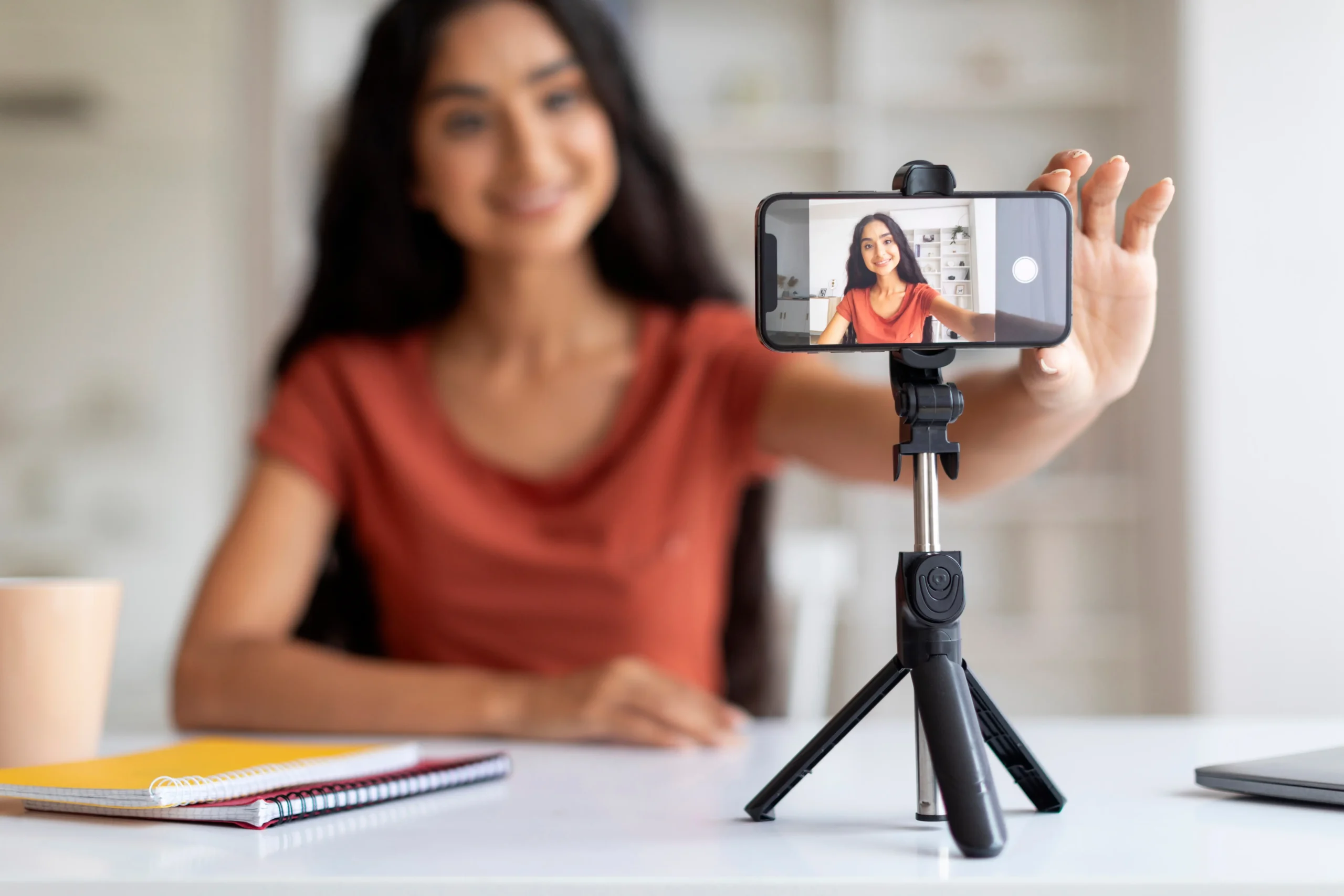
Spotlight Self-Tape Guide for Casting Professionals
Send, receive and manage self-tape requests from your Spotlight account with Spotlight Self-Tape.
We’re excited to launch Spotlight Self-Tape, a feature that allows casting professionals to request, receive and watch self-tapes directly in your Spotlight account. This feature is currently available to a limited number of casting directors. We’re using this period to refine the tool based on direct feedback before opening it up more broadly.
Using Spotlight Self-Tape, you’ll be able to keep all of the media for roles you’re casting in one place – whether they come from a Spotlight member or not. You’ll be able to view and share videos in your Spotlight account, freeing up your inbox from hefty attachments and eliminating the need to download multiple files from various file sharing services.
We’ve created this step-by-step guide to help you navigate Spotlight Self-Tape. Use these quicklinks to find out how to:
- Create a Spotlight Self-Tape request
- View and manage your Spotlight Self-Tape requests
- Upload a self-tape
- Share Spotlight Self-Tape links
How to Create a Spotlight Self-Tape Request

- In your project folder, navigate to your active breakdown(s)
- Click on the ‘View suggestions’ button.
- Select the performers you’re interested in asking to self-tape by clicking on the checkbox next to their headshot. The checkbox will turn green when a performer has been selected.
- Once performers are selected, scroll to the bottom of the page and click the ‘ACTIONS’ dropdown. When you click through to the next page, you won’t be able to add any more performers so it’s worth double-checking that you’ve selected everyone you want.
- Click on the ‘Request a self-tape’ option.
- Select the role you want to send self-tape requests out for. If you’re sending Spotlight Self-Tape requests out for multiple roles, you’ll create a separate form for each role.
- Click the ‘SUBMIT’ button
- Enter the following details for the role:
- The title for your Spotlight Self-Tape request will automatically generate from the role name and breakdown title however you can edit this in the title field if you wish. We recommend adding a date, which will help with filtering the videos when self-tapes start coming in.
- Select the date you’d like to receive the self-tape by
- Select the time you’d like to receive the self-tape by
- An optional message for the performers and/or agents to if you want to provide more information about the project/role
- Attach the script, sides or any other files necessary for the self-tape
- Select how many tapes you’d like to receive
- Add instructions for each self-tape you’ve requested
- Click the ‘PREVIEW’ button to review your self-tape request.
- If you’d like to remove a performer from your request list, click the ‘X’ icon.
- When you’re finished, click the ‘SEND REQUEST’ button. The self-tape request will then be sent to the person who made each suggestion.
- Repeat steps 1-10 for each role you’d like to send self-tape requests for.
How to View and Manage Spotlight Self-Tapes
You can do this in two ways:
1. Accessing the videos via the Self-Tape request link
- Sign into your Spotlight account and click on the ‘Self-Tape requests’ text link in the left-hand menu
- You’ll be taken to the list of all the requests you’ve sent alongside a status: Pending, Accepted, Declined, and Received.
- To access the self-tape videos, you can either:
- Click on the request name to see a list of all of the recipients it was sent to, alongside their status.
- Click on the number next to each status to view the media folder containing the self-tapes linked to that specific role request.
- You can see all of the self-tape videos for your project by clearing the filter that’s applied. To do this, click on either the:
- ‘Clear all’ text link, or the
- ‘X’ icon next to the self-tape request name, underneath the filter dropdowns.
2. Accessing the videos via your breakdown
- You can alternatively go back and click on your active breakdown, then click on ‘View Suggestions’ to see the different statuses:
- ‘Received’ will be shown in green.
- ‘Requested’ will be shown in black.
- No status indicates no request has been made or a submission came in since the last check.
- ‘Accepted’ will be shown in orange.
- ‘Declined’ will be shown in red.
How to Upload a Self-Tape to Your Project Folder
In the event that a performer isn’t on Spotlight but you’d like their self-tape to be grouped with the others in your project, you can do a manual video upload.
- Navigate to your ‘Media’ folder using the steps above.
- Click on the ‘Upload a video’ text link located underneath the project title.
- You can either:
- Click on the text link to upload the video
- Drag the video to the upload box
- Once your video has uploaded, you can rename it using the free text field and then click ‘Save’
- Click the ‘NEXT’ button
- Use the ‘Link to performer’ free text field to connect the video to an existing performer or create a new entry.
- Click the ‘FINISH’ button
How to Share Spotlight Self-Tapes
- In your self-tape request, use the checkboxes to select the videos you’d like to share. When selected, the checkbox will turn green
- Click the ‘ACTIONS’ button and select ‘Share via link’
- Fill in the free text fields and select an expiry date
- You can reorder the videos using the arrow icons, delete videos using the ‘X’ icon or add any notes in the free text field if you wish
- Click the ‘SUBMIT’ button
- This will generate a link. Once its created you can:
- Share it by clicking ‘Copy link’
- Preview the link by clicking ‘View public link’
- Edit the date by clicking ‘Edit expiry date’
- ‘Delete link’ or ‘Deactivate link’ using the text links.
By following these steps, you’ll be able to effectively manage and share the Spotlight Self-Tapes for your project. If you run into any issues, take a look at our Spotlight Self-Tape FAQs or you can contact our team at casting@spotlight.com.
We welcome your feedback on the Self-Tape feature.